Turning a Cheap Photo Frame into a Family Wall Display (Without Trusting It)
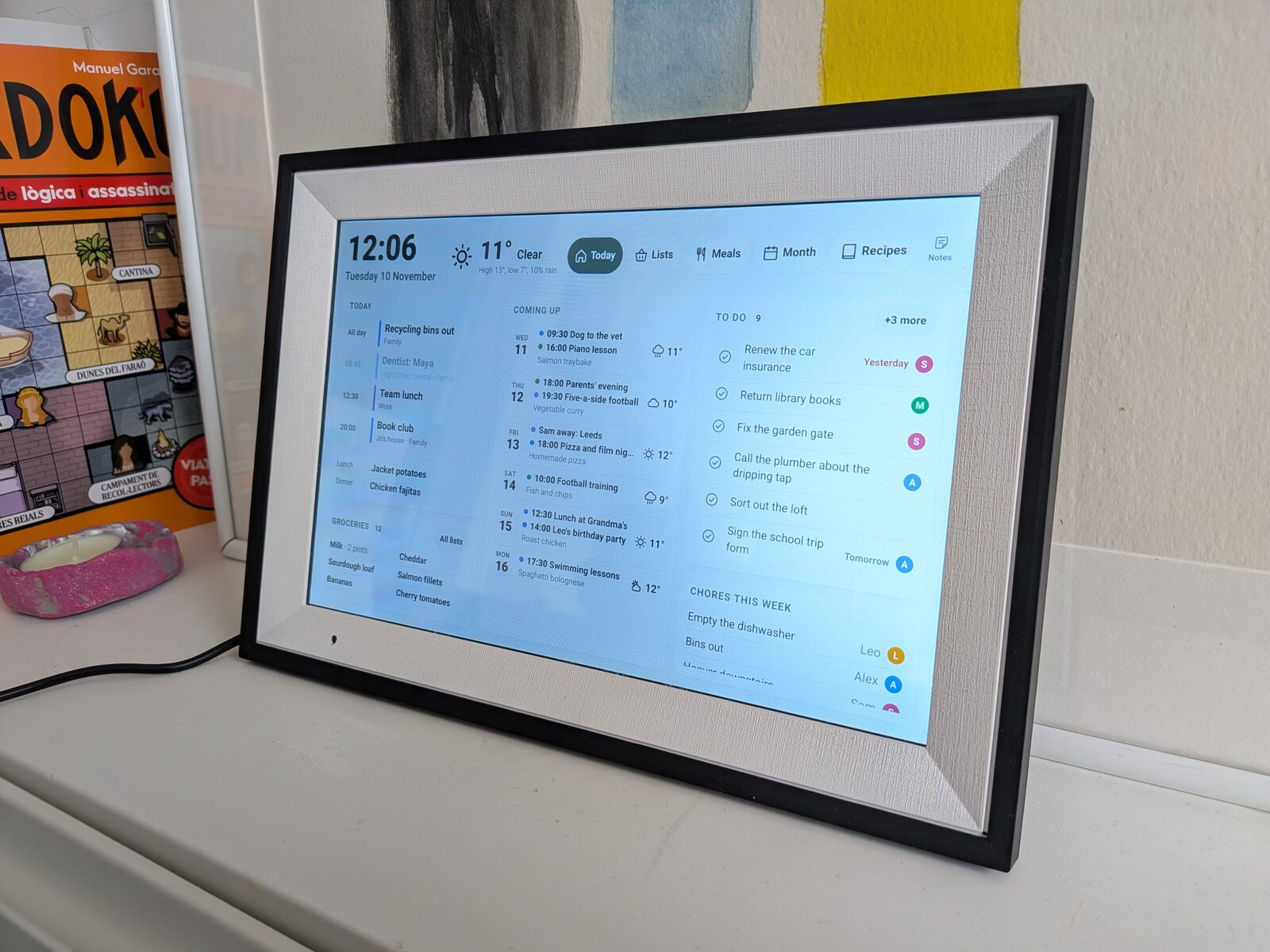
I wanted a screen on the kitchen wall showing our family planner - today’s events, meals, to-dos and the week’s chores - without buying a tablet or leaving a laptop on. This is it: a £50 Android photo frame. Getting there took a few evenings, because underneath, the frame was not something I wanted anywhere near our home network.
This post walks through it in the order I did it: what the frame does now, what I found inside it, and the five steps it took to make it safe to live with.
What it does
The frame opens on Today, as in the photo above: the day’s events and meals, the shopping list, the coming week with its forecast, the to-dos and who has which chore this week. Buttons across the top switch to the full lists, the week’s meals, the month and the recipes, and a smaller one opens a few family notes - the neighbours, appliance details, where the manuals are. The recipes and notes come from org files I already keep - the planner post explains how.
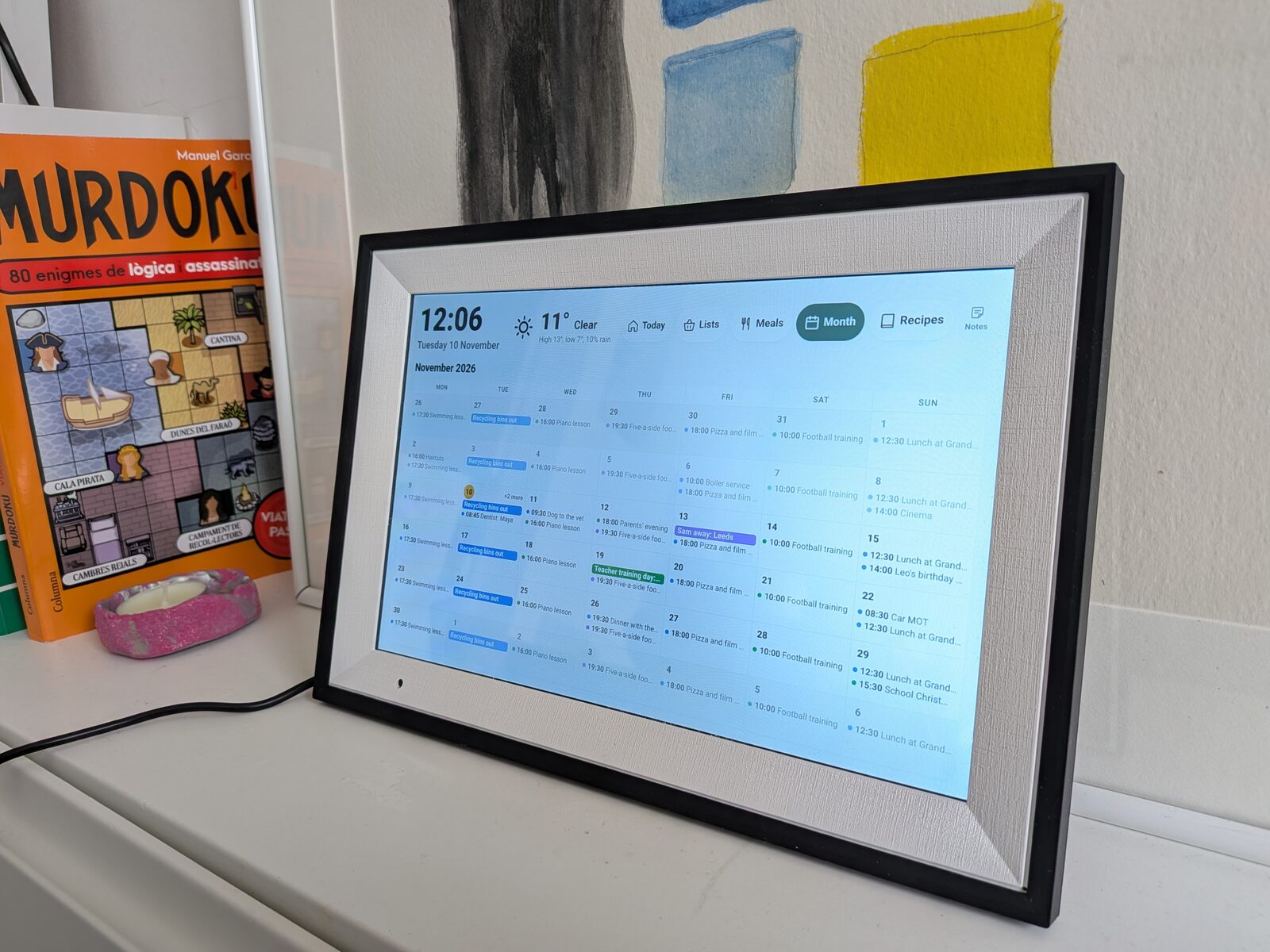
It looks after itself. Month, Lists and Notes go back to Today after five minutes without a touch. A recipe stays up for half an hour, because it’s being cooked from, and tonight’s dinner opens first.
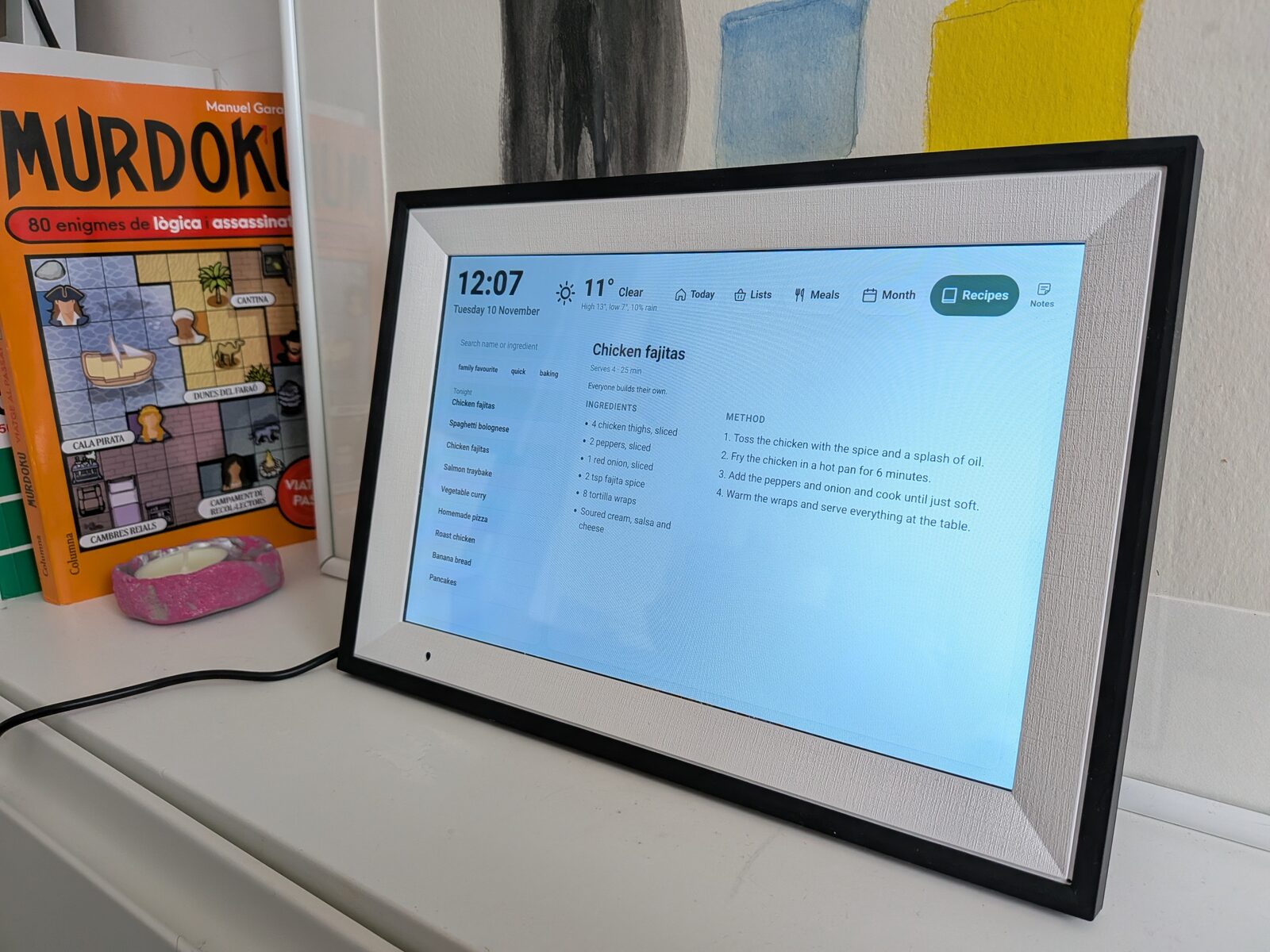
It’s mostly read-only. You can tick off a to-do or a shopping item, and tapping the clock opens a kitchen timer. When nobody’s using it, or the room goes dark, it dims itself.
The family in these photos is made up. The wall has a demo mode, behind a few quick taps, that swaps our data for an invented household, so I could photograph it without putting our week online.
The frame, and what was inside it
On paper the frame is a good fit: a 10.1” 1280×800 touchscreen, WiFi and a wall bracket. Before it went near the home WiFi, I connected it to the laptop over USB and had a read-only look around with ADB.
Just connecting it was the first surprise. USB-C to USB-C doesn’t work - no power, no data - because the frame lacks the resistors that tell a laptop to supply power. A USB-C to USB-A adapter and a known data cable does work.
What I found:
- Android 6.0.1, security patch from July 2016.
- An
engfirmware build signed with test keys, so ADB runs as root out of the box. /system/xbin/suis setuid root with no prompt - any app on the device can become root.- The stock photo-sharing app, which is also the launcher, connects to a vendor server that can send it root commands, and runs a file service listening on the network.
A vendor remote root shell on an OS more than ten years out of date is not something I want on the same network as my laptop.
I wasn’t the first to find this. Wes Bos and others run a community project on unlocking and securing frames like this one, with a guide to this exact model that matched what I found on mine. It’s the place to start for the frame itself, and it’s careful about security. What this post adds is the other half: carrying that caution through to a private app that holds real family data - a key that can do almost nothing, a kiosk that only goes to one address, and a network that keeps the frame away from everything else at home.
So I decided to treat the frame as untrusted for its whole life, even after cleaning it. That gave me a plan, and the rest of this post works through it:
| Risk | What I did about it |
|---|---|
| Vendor apps phoning home | Remove or disable them |
| Someone at the touchscreen browses elsewhere | A kiosk app that only goes to one site |
| Old OS or browser compromised, then used to attack the LAN | Put it on an isolated network |
| The frame holds a login with full access to family data | Its own key that can do almost nothing |
| The laptop exposed while connected over USB | Plug in only while working on it |
Step one: back it up
Before changing anything, I took a full backup of the internal storage - every partition, plus the whole 16 GB eMMC in verified chunks. One partition holds device credentials, so the backup is stored off Dropbox and out of git.
Worth knowing: the frame’s default dd uses 32-bit offsets and silently wraps at 2 GiB. My first full-disk backup looked fine and was garbage past 2 GiB. toybox dd, with a size check on every chunk, fixed it.
Step two: a kiosk to replace the launcher
The vendor app is also the frame’s home screen, so disabling it before there’s a replacement leaves a frame that boots to nothing. The kiosk had to come first.
A custom ROM wasn’t an option - Android 6 predates Project Treble, so there’s no generic system image, and nobody has built LineageOS for this board. The built-in WebView is from 2015, and Chrome stopped supporting Android 6 at version 106. The newest browser engine that still runs is GeckoView 143 (Firefox 143, the last release for Android 5-7), so the kiosk is a small Android app wrapping that. It:
- Only goes to the planner’s address. Everything else is refused - no pop-ups, no new tabs, and the back button stays inside the kiosk.
- Runs full screen with the screen on, shows “Can’t reach the planner” and retries every 30 seconds, and reopens itself if the engine crashes.
- Dims itself after five idle minutes, or straight away when the room goes dark, using the light sensor in the bezel - which, to my relief, is what the hole I’d worried was a camera turned out to be.
GeckoView 143 won’t get any more security updates, which is why the allowlist, and the separate network in step four, matter.
Two things bit me here. An early build used an Android 13 API and crashed on the frame, though the unit tests passed - run Android lint, whose NewApi check catches that; it now runs on every build. And laptop USB power isn’t enough under load: installing the 148 MB app browned the frame out mid-install. Turning the brightness right down and limiting the app compiler to one thread got it through.
Step three: remove the vendor’s software
With the kiosk set as the home screen, I cleaned up the rest over root ADB:
- Disabled the vendor app, the vendor over-the-air updater and a “factory test” app.
- Moved one factory test app out of
/system/priv-appentirely, because something re-enabled it on every boot. - Took the setuid bit off
su. ADB still has root over USB, so maintenance works, but no app can escalate. - Set the time zone (it shipped on New York) and replaced the “LOVE IS SHARING” boot splash with our own.
After that, nothing listens on the vendor’s file port and nothing connects to the vendor’s command server.
Step four: its own network
Our ISP router has no VLANs or firewall rules, but it does have a guest WiFi, so the frame lives there. I tested isolation both ways, over IPv4 and IPv6, with a control so the tests couldn’t pass for the wrong reason:
- Frame → laptop: blocked.
- Frame → router admin: blocked.
- Laptop → frame: blocked.
- Frame → the planner (control): reachable.
One warning from this step: don’t turn WiFi off with svc wifi disable. It persists across reboots, and the kiosk has no way to turn it back on.
The guest network can’t filter what the frame reaches on the internet. If I want more than that, a small travel router with a DNS allowlist is the next step.
Step five: staying signed in
This took longer than everything above put together.
The frame has no clock battery, so it boots thinking it’s 1970. Gecko caps cookie lifetimes at 400 days from its own idea of now, so a cookie set before the network clock arrived got a 1971 expiry and was thrown away as soon as the real date came through. Every restart meant signing in again, with a second factor. The kiosk now shows “Waiting for the time…” and doesn’t start the browser until the clock is past the date the app was built.
That fixed the cookies but not the sign-in. The frame had its own Microsoft account, the session only lasted eight hours, and after enough sign-ins from the frame Microsoft locked the account. The fix was on the planner side: the frame now has its own key instead of an account, which I’ve covered in the planner post. The key is handed over once, with a pairing link - and because Gecko’s debug log echoes URLs, I clear the logs afterwards so the link doesn’t stay on the device.
I tested it by pulling the power. The frame waited for the time, then went straight to the dashboard.
An agent on real hardware
This was the first time I’ve used an agentic coding tool on hardware rather than just software. Claude Code drove ADB and wrote the kiosk app while I made the calls. It did the forensic parts - reading partition tables, taking and verifying the backup, installing builds on the frame, chasing the 1970 cookie bug - far faster than I would have alone.
That opens up a lot of possibilities. I’ve done my share of hardware work: in 2020 we built in situ monitoring kit on open-source hardware for under $100 and used it to cut the reaction time of a metal-organic framework synthesis by 93%. A lot of the time on projects like that goes on the loop between the kit and the laptop - connect, read, adjust, try again - and that’s exactly the loop an agent sat in here. I’ll be thinking carefully about what that could mean.
Was it worth it?
For £50 we have a silent, auto-dimming family dashboard on the wall. It took a few evenings, most of them on the sign-in problem rather than the hardware.
If you try this with a cheap frame, assume it’s hostile: clean what you can, keep it on its own network, and give it as little access as you can.
The kiosk app and my notes from the build are on GitHub.
Comments
Loading comments…